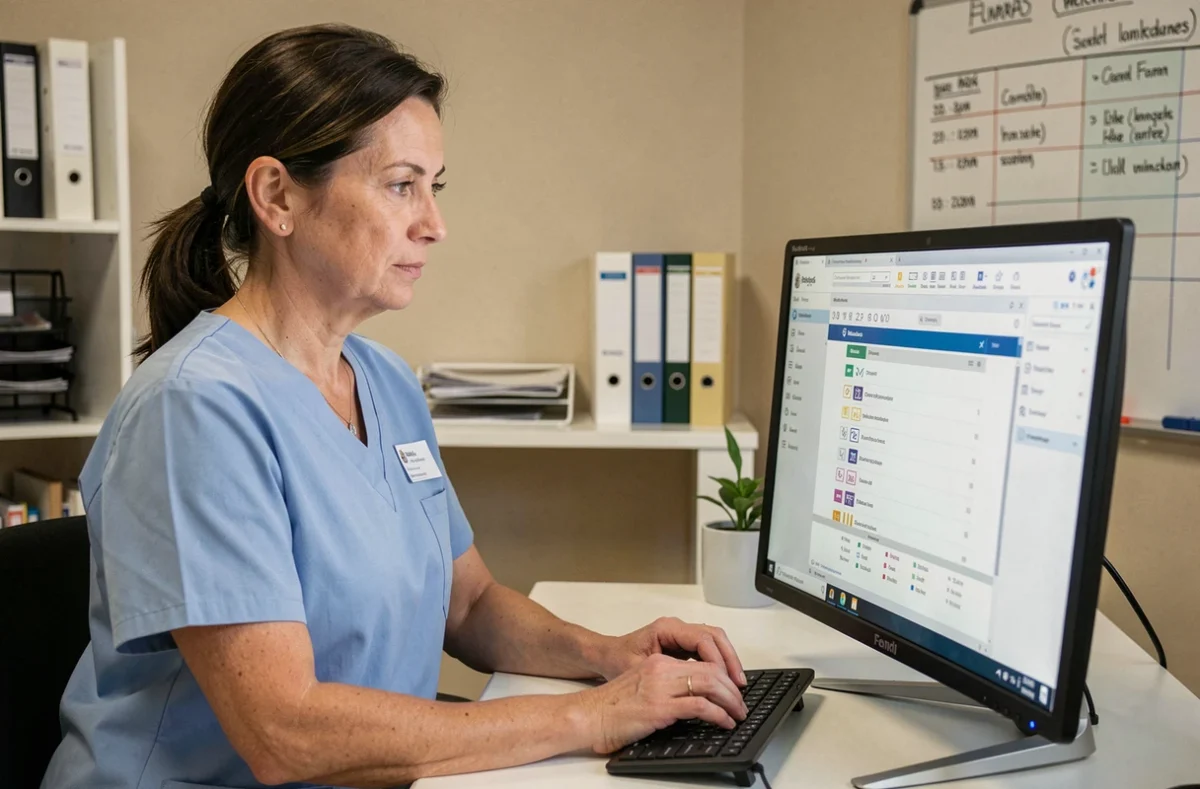
During a night shift handover, a temporary care assistant opens Netsoins for the first time. They need to find information about an agitated resident within seconds, without having received any prior training on the software. If the system hasn’t been configured with this scenario in mind, they waste time, miss an alert or enter information in the wrong place. The real test of configuring Netsoins in a nursing home comes in these high-pressure moments, not in meeting-room demonstrations.
On-site requirements to check before configuring Netsoins
Configuration is often thought of as a screen-based task. In practice, the first step takes place in the corridors. Netsoins runs in a web browser, and the login address varies from one facility to another.
Before configuring anything, take stock of the computers and tablets available on each floor, and check Wi-Fi coverage in the areas where staff actually enter information (nurses’ station, care trolley, break room during handovers). Sophisticated configuration is pointless if the device is slow or the network drops out in residents’ rooms.
Another point that is often underestimated is which version of the software is in use. Netsoins comes in several versions, including NETSoins DM, which is subject to the European Medical Device Regulation. Features, regulatory requirements and deployment procedures vary. You can save time by confirming with the software provider which version is active at the facility before setting up workflows.
For a more in-depth look at the process, this comprehensive guide explains how to configure Netsoins for your nursing home while taking these technical and organizational constraints into account.
User profiles and access rights suited to temporary staff
Profile settings determine whether temporary staff can work independently or feel lost. Each profile should reflect a role on the ground, not an organizational chart. A night-shift care assistant doesn’t need the same screens as a daytime nurse coordinator.
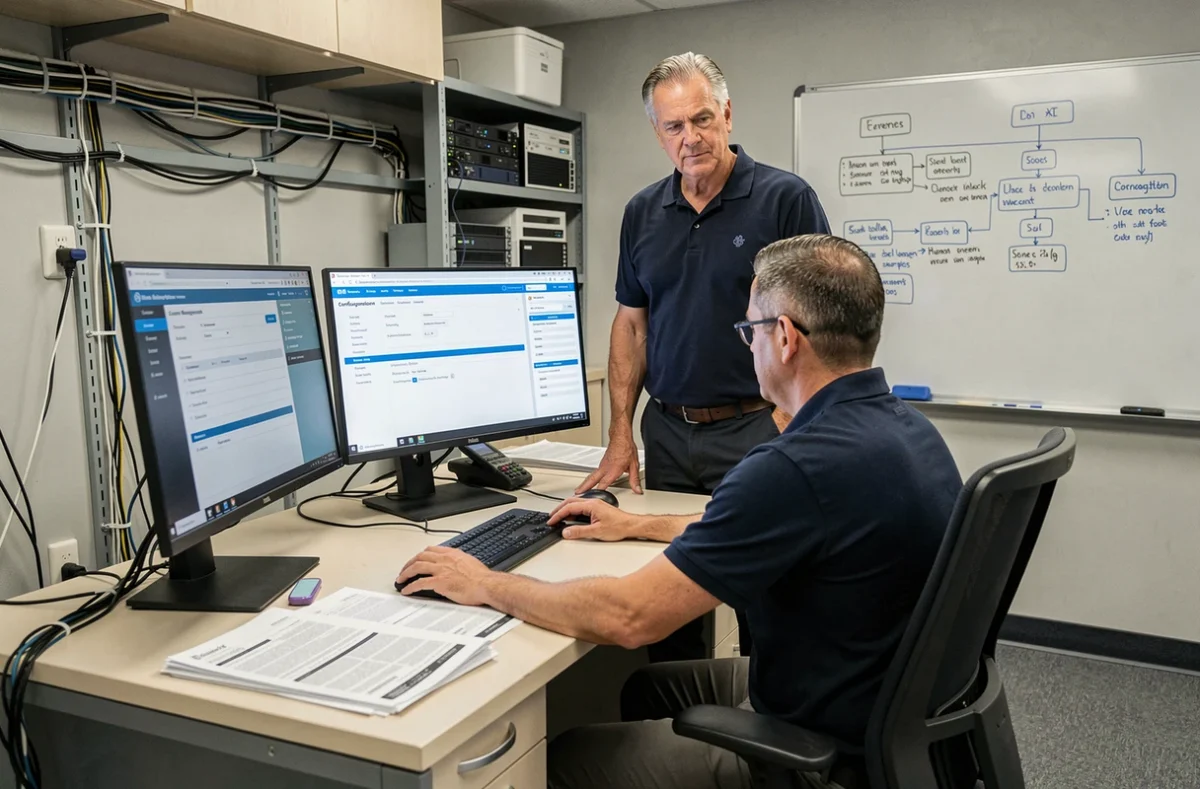
Netsoins brings together the resident record, care plan and handover notes within an ecosystem of modules (billing, admissions, scheduling). When you create a profile, you decide which modules and information are visible. It’s tempting to make everything accessible for the sake of simplicity. The result is an overloaded screen that slows staff down in an emergency.
Three practical principles for profiles that work day and night:
- Create a “temporary care staff” profile separate from the permanent staff profile, with direct access to targeted handover notes, the care plan and current alerts, but without administrative modules (billing, admissions)
- Limit the number of clicks needed to reach a resident’s record from the home screen: if staff have to navigate through more than two menus, the configuration is too deep
- Assign each profile a unique personal login, including those used by temporary staff, so entries can be traced unambiguously (a requirement related to hosting health data, whose HDS framework was updated by decree in 2024)
Handover notes and care plans: easy to read in under two minutes
Night-shift handovers rarely last more than ten minutes. The system should be configured so staff can read and enter a handover note in under two minutes. Anything longer encourages shortcuts (paper notes, unrecorded verbal messages).
To achieve this in Netsoins, focus on two areas. The first is the default filter. When staff open the handover notes, the default view should show the last 24 hours for the relevant unit, not the entire facility. This setting is configured in the profile’s view preferences.
The second area is standardizing handover categories. Netsoins lets you create custom categories. Keeping the list to around ten categories reduces hesitation when entering information. Retain the essentials (behavior, pain, nutrition, falls, technical care, family contact) and remove duplicates or categories that are never used.
The care plan follows the same principle. A care plan cluttered with outdated tasks takes longer to read. Reviewing configured tasks quarterly with the nurse coordinator makes it possible to remove anything no longer prescribed and adjust schedules to match actual staff rotations.
Pharmacy connections and tele-expertise: check before configuring
Netsoins offers integrations with pharmacies, consumption management and tele-expertise services. These interfaces are not enabled in every configuration. Before building a procedure around an automatic connection to the pharmacy, ask the software provider for an up-to-date list of the interfaces available to the facility, their functional scope and their technical requirements.
This check helps avoid a common scenario: setting up a prescription workflow on the assumption that prescriptions will be sent automatically to the pharmacy, only to discover that the interface hasn’t been enabled and prescriptions are still being sent by fax.

Maintaining Netsoins settings over time
Configuration is never set in stone. Staff turnover, changes to care protocols and software updates gradually create a gap between the settings and the reality on the ground.
- Appoint a Netsoins lead at each facility (not necessarily an IT specialist; often an RN or healthcare manager) to coordinate requests for adjustments
- Schedule a configuration review every quarter, alongside the care plan review, to remove inactive profiles, adjust handover categories and check access rights
- Document configuration decisions in an accessible internal document (rather than leaving them in one person’s head), so the next manager or IT provider can understand the reasoning behind the settings
Configuring Netsoins in a nursing home is about more than ticking boxes in an administration menu. It’s organizational work shaped by the demands of night shifts, temporary staffing and the limited time care staff have available. Good configuration is measured by how quickly temporary staff can find information, not by the number of features enabled.